> ## Documentation Index
> Fetch the complete documentation index at: https://bun.com/docs/llms.txt
> Use this file to discover all available pages before exploring further.
# Deploy a Bun application on AWS Lambda
[AWS Lambda](https://aws.amazon.com/lambda/) is a serverless compute service that lets you run code without provisioning or managing servers.
In this guide, we will deploy a Bun HTTP server to AWS Lambda using a `Dockerfile`.
Before continuing, make sure you have:
* A Bun application ready for deployment
* An [AWS account](https://aws.amazon.com/)
* [AWS CLI](https://docs.aws.amazon.com/cli/latest/userguide/cli-chap-getting-started.html) installed and configured
* [Docker](https://docs.docker.com/get-started/get-docker/) installed and added to your `PATH`
***
Make sure you're in the directory containing your project, then create a new `Dockerfile` in the root of your project. This file contains the instructions to initialize the container, copy your local project files into it, install dependencies, and start the application.
```docker Dockerfile icon="docker" theme={"theme":{"light":"github-light","dark":"dracula"}}
# Use the official AWS Lambda adapter image to handle the Lambda runtime
FROM public.ecr.aws/awsguru/aws-lambda-adapter:0.9.0 AS aws-lambda-adapter
# Use the official Bun image to run the application
FROM oven/bun:debian AS bun_latest
# Copy the Lambda adapter into the container
COPY --from=aws-lambda-adapter /lambda-adapter /opt/extensions/lambda-adapter
# Set the port to 8080. This is required for the AWS Lambda adapter.
ENV PORT=8080
# Set the work directory to `/var/task`. This is the default work directory for Lambda.
WORKDIR "/var/task"
# Copy the package.json and bun.lock into the container
COPY package.json bun.lock ./
# Install the dependencies
RUN bun install --production --frozen-lockfile
# Copy the rest of the application into the container
COPY . /var/task
# Run the application.
CMD ["bun", "index.ts"]
```
Make sure that the start command corresponds to your application's entry point. This can also be `CMD ["bun", "run", "start"]` if you have a start script in your `package.json`.
This image installs dependencies and runs your app with Bun inside a container. If your app doesn't have dependencies, you can omit the `RUN bun install --production --frozen-lockfile` line.
Create a new `.dockerignore` file in the root of your project. This file contains the files and directories that should be *excluded* from the container image, such as `node_modules`. This makes your builds faster and smaller:
```docker .dockerignore icon="Docker" theme={"theme":{"light":"github-light","dark":"dracula"}}
node_modules
Dockerfile*
.dockerignore
.git
.gitignore
README.md
LICENSE
.vscode
.env
# Any other files or directories you want to exclude
```
Make sure you're in the directory containing your `Dockerfile`, then build the Docker image. In this case, we'll call the image `bun-lambda-demo` and tag it as `latest`.
```bash terminal icon="terminal" theme={"theme":{"light":"github-light","dark":"dracula"}}
# cd /path/to/your/app
docker build --provenance=false --platform linux/amd64 -t bun-lambda-demo:latest .
```
To push the image to AWS Lambda, we first need to create an [ECR repository](https://aws.amazon.com/ecr/) to push the image to.
By running the following command, we:
* Create an ECR repository named `bun-lambda-demo` in the `us-east-1` region
* Get the repository URI, and export the repository URI as an environment variable. This is optional, but make the next steps easier.
```bash terminal icon="terminal" theme={"theme":{"light":"github-light","dark":"dracula"}}
export ECR_URI=$(aws ecr create-repository --repository-name bun-lambda-demo --region us-east-1 --query 'repository.repositoryUri' --output text)
echo $ECR_URI
```
```txt theme={"theme":{"light":"github-light","dark":"dracula"}}
[id].dkr.ecr.us-east-1.amazonaws.com/bun-lambda-demo
```
If you're using IAM Identity Center (SSO) or have configured AWS CLI with profiles, you'll need to add the `--profile` flag to your AWS CLI commands.
For example, if your profile is named `my-sso-app`, use `--profile my-sso-app`. Check your AWS CLI configuration with `aws configure list-profiles` to see available profiles.
```bash terminal icon="terminal" theme={"theme":{"light":"github-light","dark":"dracula"}}
export ECR_URI=$(aws ecr create-repository --repository-name bun-lambda-demo --region us-east-1 --profile my-sso-app --query 'repository.repositoryUri' --output text)
echo $ECR_URI
```
Log in to the ECR repository:
```bash terminal icon="terminal" theme={"theme":{"light":"github-light","dark":"dracula"}}
aws ecr get-login-password --region us-east-1 | docker login --username AWS --password-stdin $ECR_URI
```
```txt theme={"theme":{"light":"github-light","dark":"dracula"}}
Login Succeeded
```
If using a profile, use the `--profile` flag:
```bash terminal icon="terminal" theme={"theme":{"light":"github-light","dark":"dracula"}}
aws ecr get-login-password --region us-east-1 --profile my-sso-app | docker login --username AWS --password-stdin $ECR_URI
```
Make sure you're in the directory containing your `Dockerfile`, then tag the docker image with the ECR repository URI.
```bash terminal icon="terminal" theme={"theme":{"light":"github-light","dark":"dracula"}}
docker tag bun-lambda-demo:latest ${ECR_URI}:latest
```
Then, push the image to the ECR repository.
```bash terminal icon="terminal" theme={"theme":{"light":"github-light","dark":"dracula"}}
docker push ${ECR_URI}:latest
```
Go to **AWS Console** > **Lambda** > [**Create Function**](https://us-east-1.console.aws.amazon.com/lambda/home?region=us-east-1#/create/function?intent=authorFromImage) > Select **Container image**
Make sure you've selected the right region, this URL defaults to `us-east-1`.
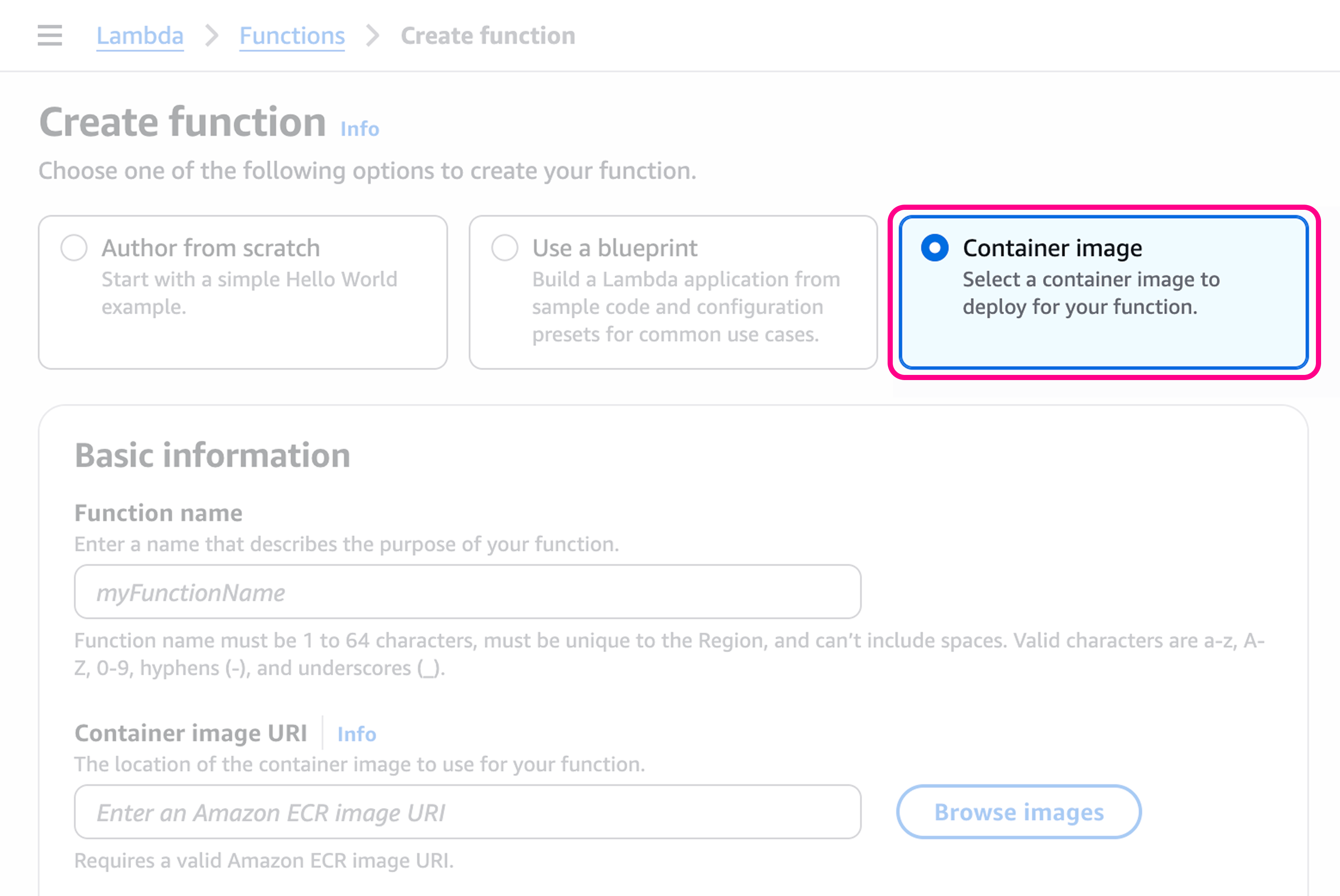 Give the function a name, like `my-bun-function`.
Then, go to the **Container image URI** section, click on **Browse images**. Select the image we just pushed to the ECR repository.
Give the function a name, like `my-bun-function`.
Then, go to the **Container image URI** section, click on **Browse images**. Select the image we just pushed to the ECR repository.
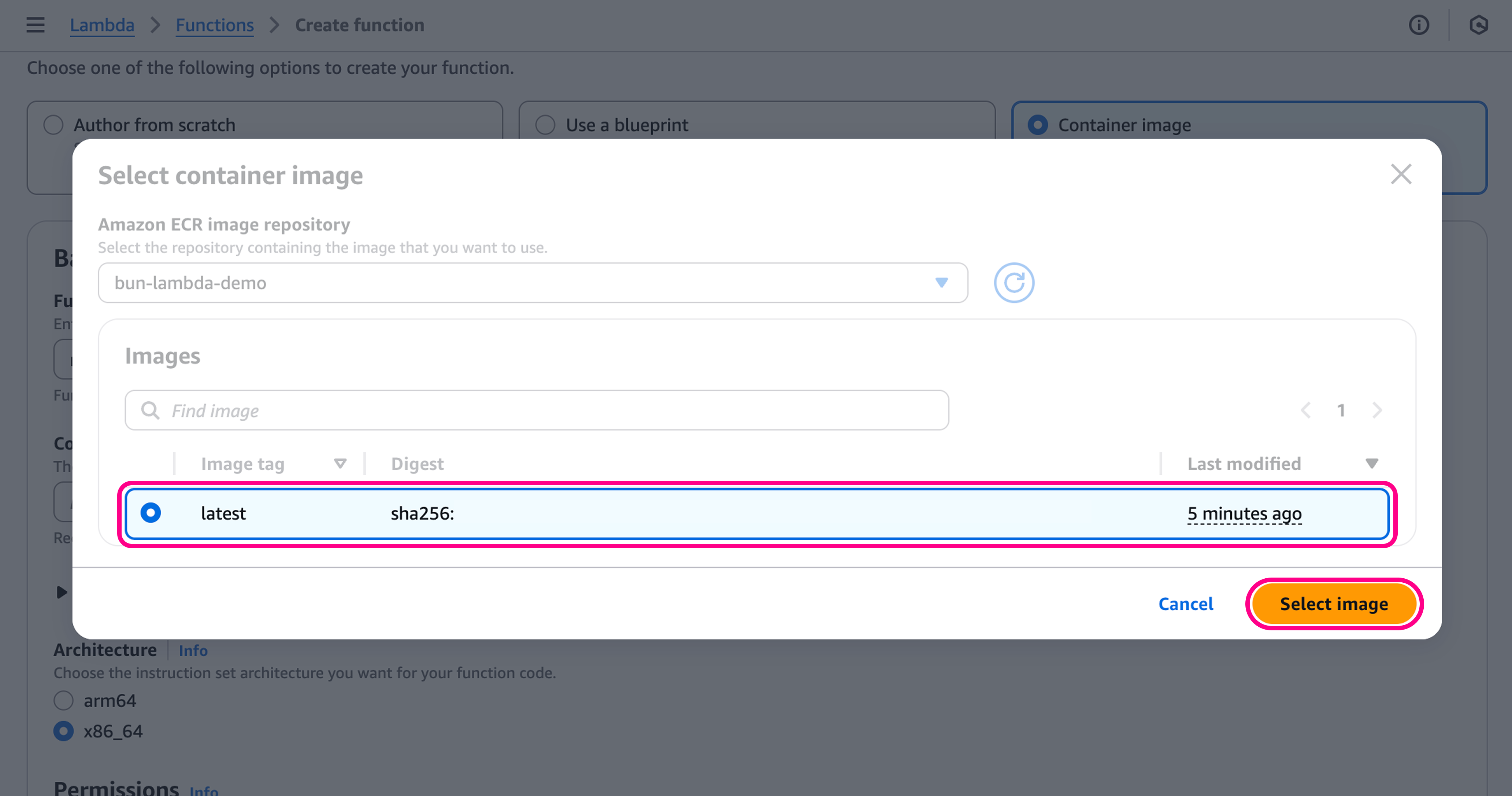
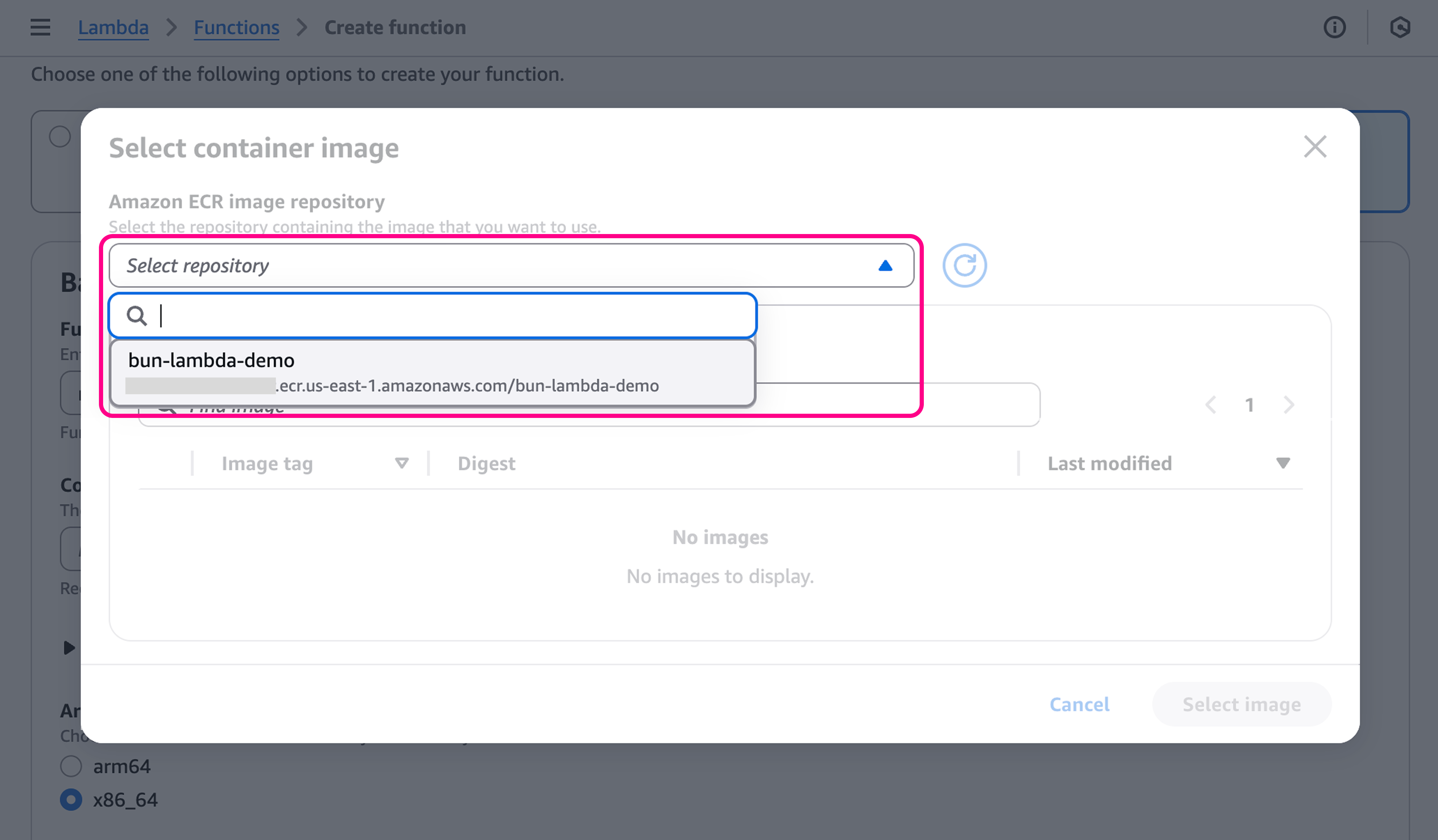 Then, select the `latest` image, and click on **Select image**.
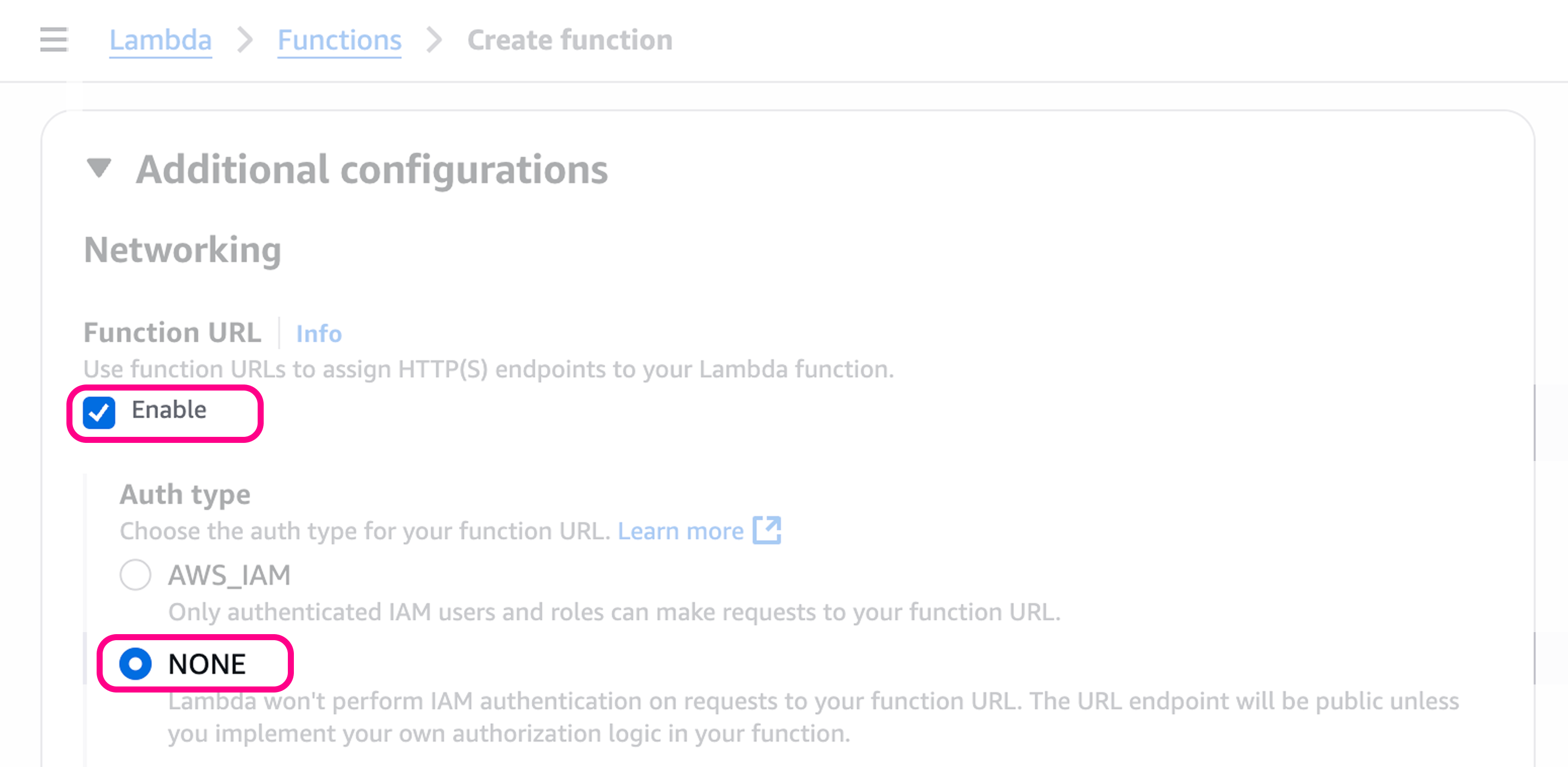
 To get a public URL for the function, we need to go to **Additional configurations** > **Networking** > **Function URL**.
Set this to **Enable**, with Auth Type **NONE**.
To get a public URL for the function, we need to go to **Additional configurations** > **Networking** > **Function URL**.
Set this to **Enable**, with Auth Type **NONE**.
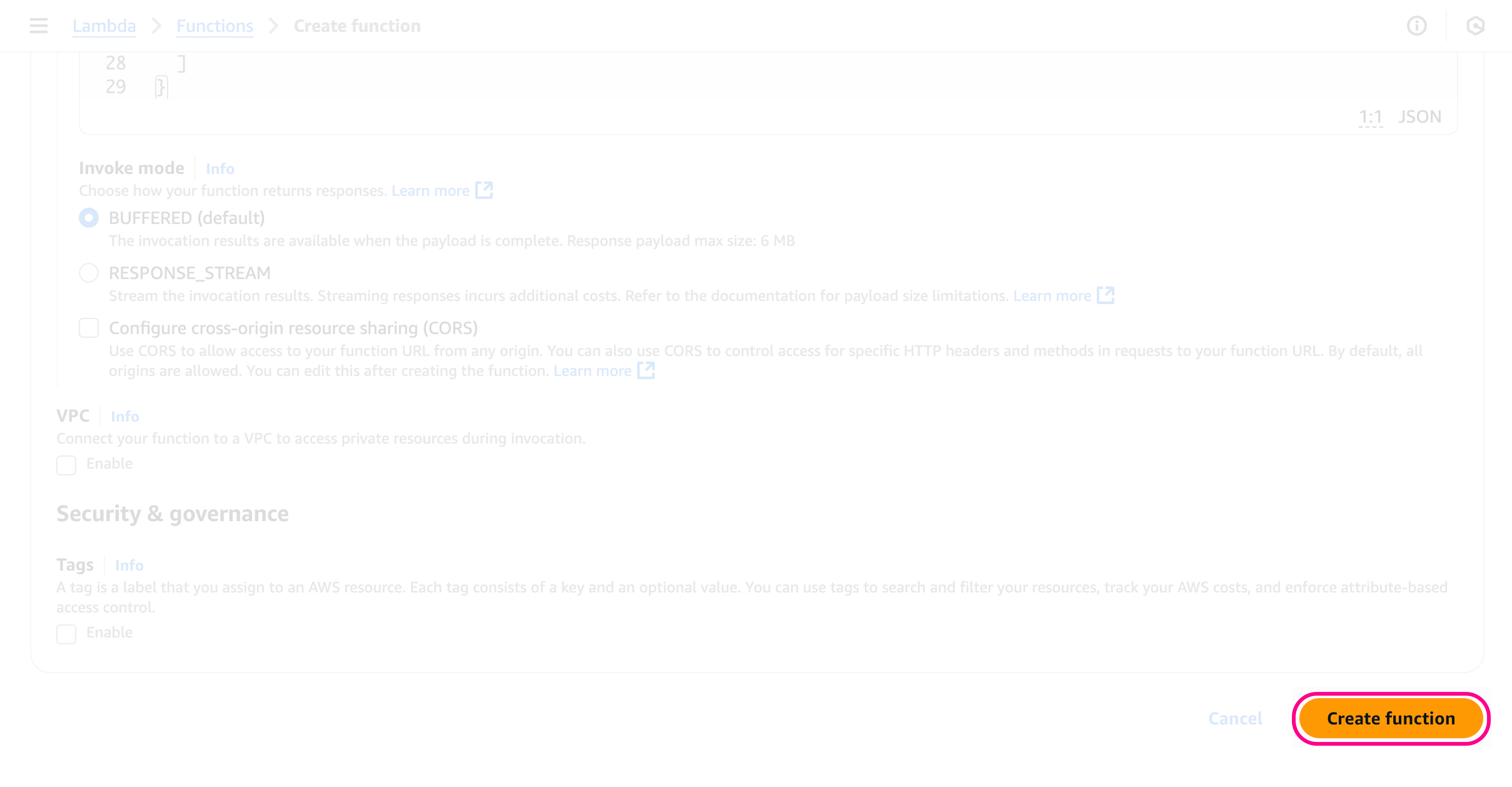
 Click on **Create function** at the bottom of the page, this will create the function.
 Once the function has been created you'll be redirected to the function's page, where you can see the function URL in the **"Function URL"** section.
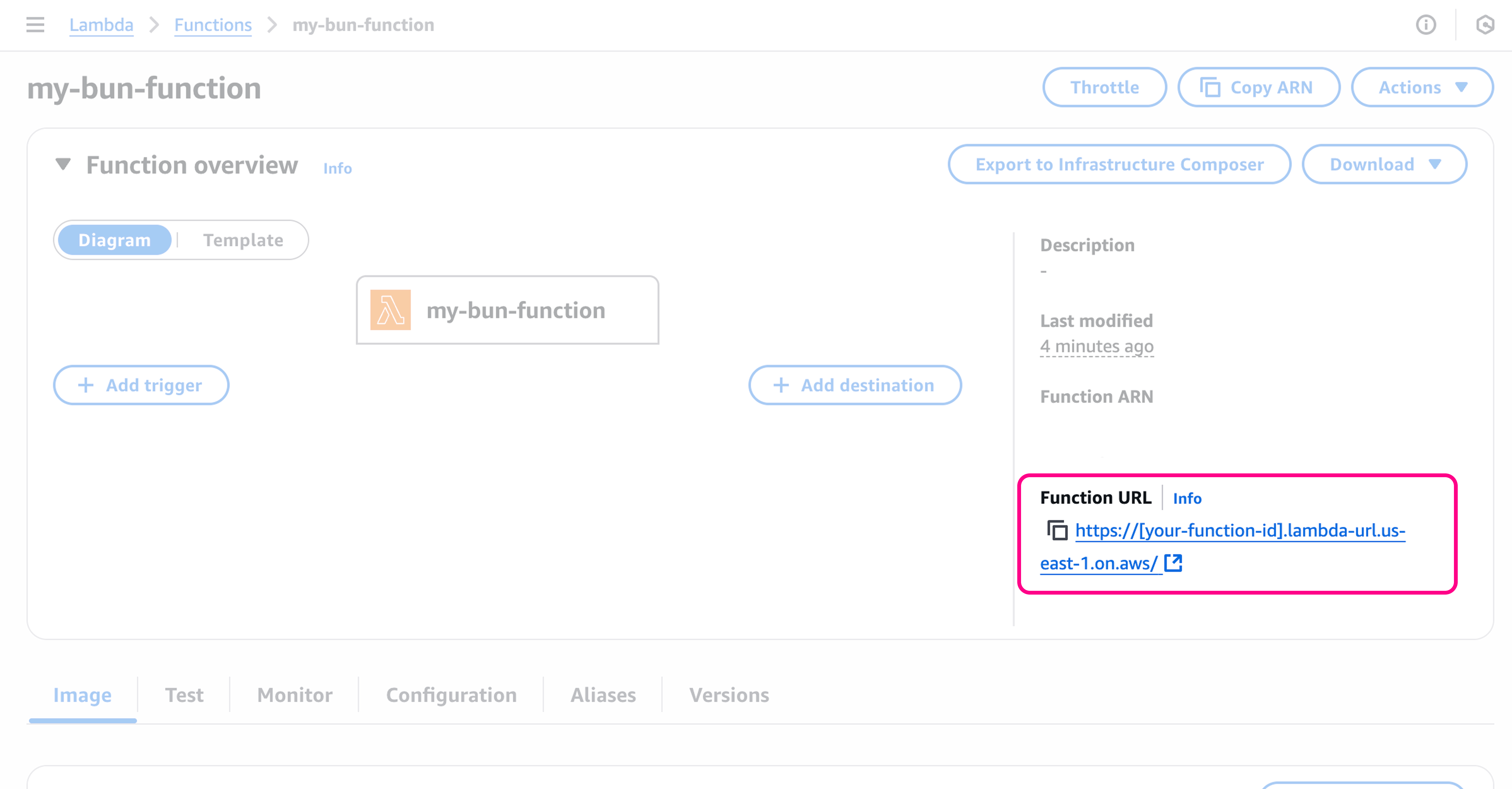 🥳 Your app is now live! To test the function, you can either go to the **Test** tab, or call the function URL directly.
```bash terminal icon="terminal" theme={"theme":{"light":"github-light","dark":"dracula"}}
curl -X GET https://[your-function-id].lambda-url.us-east-1.on.aws/
```
```txt theme={"theme":{"light":"github-light","dark":"dracula"}}
Hello from Bun on Lambda!
```
🥳 Your app is now live! To test the function, you can either go to the **Test** tab, or call the function URL directly.
```bash terminal icon="terminal" theme={"theme":{"light":"github-light","dark":"dracula"}}
curl -X GET https://[your-function-id].lambda-url.us-east-1.on.aws/
```
```txt theme={"theme":{"light":"github-light","dark":"dracula"}}
Hello from Bun on Lambda!
```